

Microsoft Teams Transforms the Way Your Team Works
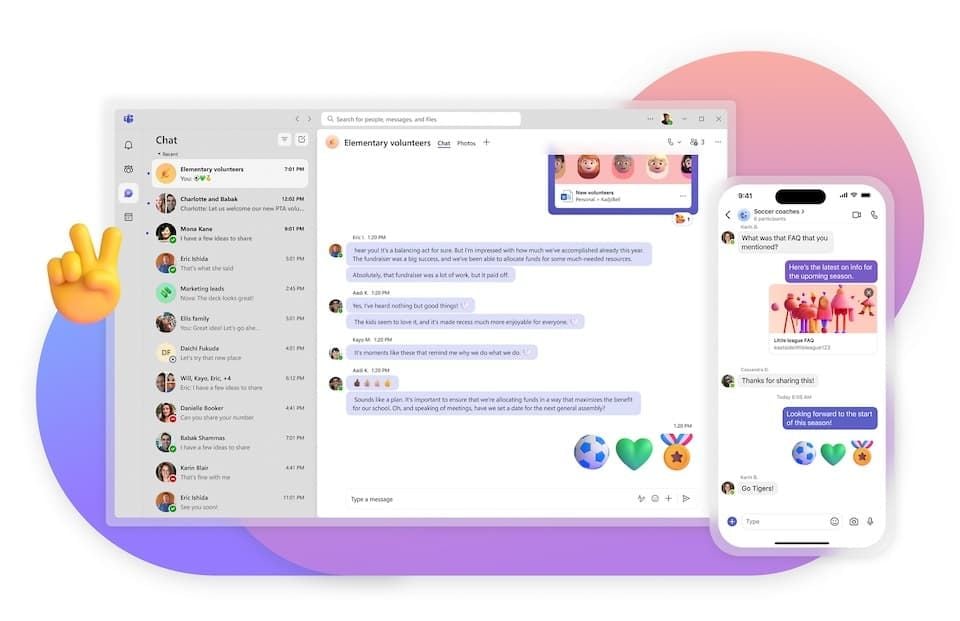
These days, a typical workspace is not confined within one Office anymore, and this is why Microsoft Teams has been designed with this in mind. Teams has grown into a more in-depth and complete platform for communication, collaboration and productivity since its launch in 2017 and now supports more than 320 million monthly users across the globe. It all-in-one chat, video conferencing, file sharing, and applications by third parties — and you don't have to use a dozen other tools. It doesn't matter whether you're new to your company, working remotely, or just looking for ways to keep yourself organised with several projects, this is your guide to getting started.


Getting Started: Installation and Sign-In
Microsoft Teams can be used on Windows, macOS, iOS, Android and as a browser-based web app on teams.microsoft.com. Use your Microsoft 365 work or school account to sign in; if your organisation is using Teams then your IT admin has already done this provisioning. Teams Free also has essence features and primary chat features, which teams speak to no cost your personal account. After signing in, you'll be at main interface, and you could access Activity, Chat, Teams, Calendar and Files on left sidebar.
Channels and Teams: Organising Your Workspace
Teams and channels are the fundamentals of Microsoft Teams. A team can still be a department or a project team or even a whole company where channels are the topics that one can participate in. A Marketing team could have Campaigns, Social Media and Budget channels, for instance. Public channels can be accessed by anyone on the team; private channels are accessibly only to invited team members. Reduce any clutter from the start, by right clicking on the channels you use most, and selecting Pin, they will stay at the top of your list.
Chat and Messaging Features
In addition to the channel posts, Teams provide direct, 1:1, and group chats on the Chat tab. Rich formatting – Bold, italics, bullets, code blocks – is possible with the formatting toolbar. Mention a channel using @channel or a person using @mention, or an entire team with @team. You can acknowledge messages without getting the thread cluttered with talk with Reactions (emoji reactions). Set a message as important or urgent – urgent messages keep repeating until the person returns the message. It is also possible to set the time for the sending of your message, which can be helpful when you have to work in different time zones.
Meetings and Video Calls
Its better features include teams' meeting capacities. Host a meeting straight from the Calendar tab, which is automatically synced with the Outlook calendar. In a call, you can share your entire screen or a particular application window, or share a PowerPoint presentation, with the built-in PowerPoint Live feature that permits the attendees to scroll through the slides at their own speed. Break out rooms enable the meeting organiser to divide their audience into discussion groups and facilitate reconvening in a moment with 1 click. Recordings and automatic transcription for meetings makes it easy to follow along if you miss a meeting!
File Sharing and Collaboration
All Teams and its channels include a built-in SharePoint storage, with files shared within a channel also being saved and shared through SharePoint with everyone in the channel. View, edit and co-author Word, Excel or PowerPoint documents within Teams, without switching to other apps. Any channel's Files tab provides a clear view of all shared files. Drag files to easily transfer one file at a time into a chat window.
Apps, Integrations, and Customisation
One of the things that Team seems to have often missed the credit for is their app ecosystem. Use the Apps icon on the left side of the screen to search hundreds of integrations from project management tools like Trello or Asana, to polling apps, brainstorming apps like Whiteboard, structured sign-off apps like Approvals. Any channel can be pinned to the top to create a mini dashboard with your team's tools and information side by side. A small amount of customizing can make a world of difference with the right apps, which can help you eliminate the context switching and keep your team focused.