


Master Your Email Workflow With Microsoft Outlook
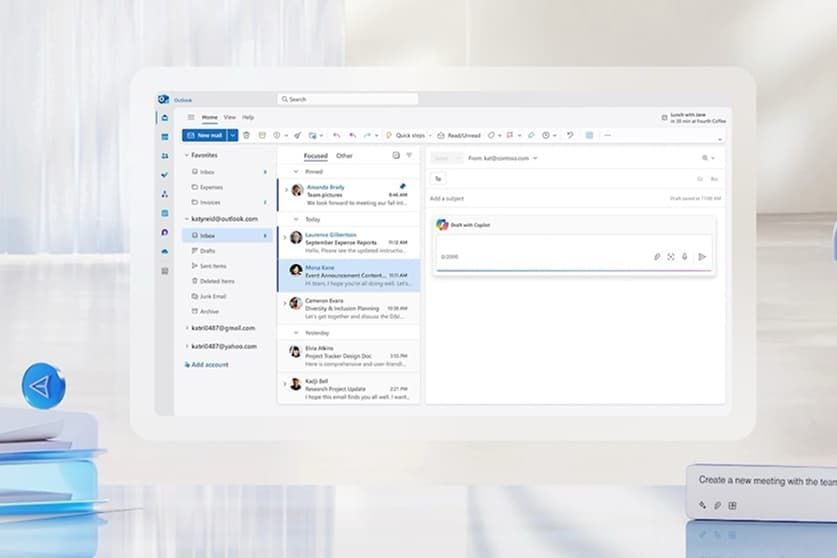
Microsoft Outlook is more than just an e-mail client—it's a productivity suite that offers more than just e-mail, it includes calendars, contacts and tasks. One of its leading benefits is that all your email accounts are available in one inbox, ensuring that you don't need to switch between different email accounts to access emails at every different provider. Outlook makes it easier to tidy up your daily routine whether you're arranging business interactions or arranging appointments or overseeing schedule details. The app's robust search feature, smart organization tools and integration with Microsoft 365 allows users to continue being productive on their desktop, on their smartphone and tablet and everything in between.


Set Up Your Outlook Workspace
It's easy to get started. If you have Microsoft Outlook installed, sign in using your Microsoft account or your organization's work or school account.
Microsoft Outlook will accept several options of email server, such as Outlook.com, Microsoft 365, Gmail, Yahoo, and numerous IMAP or Exchange accounts. Once you've added your accounts, arrange your inbox with folders, categories, rules and Focused Inbox to sort incoming messages for you. You can also sync calendar and contacts, which makes it a one-stop interface for messaging and appointment-scheduling.
Organize Emails More Efficiently
You can organize with some intelligent tools in Outlook. The Focused Inbox automatically filters out less important emails from the more important ones and there are various categories and labels for follow-up tasks.
Search filters allow you to search easily by sender, attachment, keyword, date. You can also archive older messages and leave them in your inbox, so you don't lose any records or clutter up inbox. For professionals who receive a large volume of emails daily, making rules to categorize incoming emails into specific folders can help save considerable time on a daily basis.
Write Secure and Professional Emails
Outlook has built-in capabilities to ensure message quality and information security when composing messages. Supporting your account and Microsoft 365 subscription, you can send email messages that are encrypted to help keep sensitive information confidential during transmission. Digital signatures, or sensitivity labels and Information Rights Management policies can be added to provide further layers of security for organizations
Outlook uses Microsoft Editor for parsing emails, providing suggestions for spelling, grammar and style while you write. Reading these tips before sending your email will leave you with a more well-defined and polished message for your colleagues, clients and business partners.
Manage Your Calendar and Tasks
Using Outlook's calendar is easy to plan meeting and appointment schedules. You can schedule repeating events, book meeting rooms, invite attendees and receive notifications about upcoming events.
With Tasks and To Do, you can transform emails into actionable tasks, assign due dates, and track the progress of the tasks throughout the day. Having all your email, calendar and tasks in one place minimize context switching and allows you to be more organized with your personal and professional workloads.
Make Outlook Part of Your Daily Routine
For the best Outlook use, periodically tidy up your inbox, look at your calendar at the start of every day, and make sure your folders and categories are in order. Allow notifications for only top important messages to avoid distractions but not miss important messages.
One helpful productivity tool is the built-in grammar checking function in Outlook which lets the user know if there are spelling, grammar or style problems before the email is sent. Outlook offers a comprehensive suite of features for managing communication, such as unified email management, advanced security features, smart organization capabilities, and seamless integration with Microsoft 365, all of which ensure efficiency and professionalism in your communication efforts.