

AnyDesk Tips Every Remote User Should Know
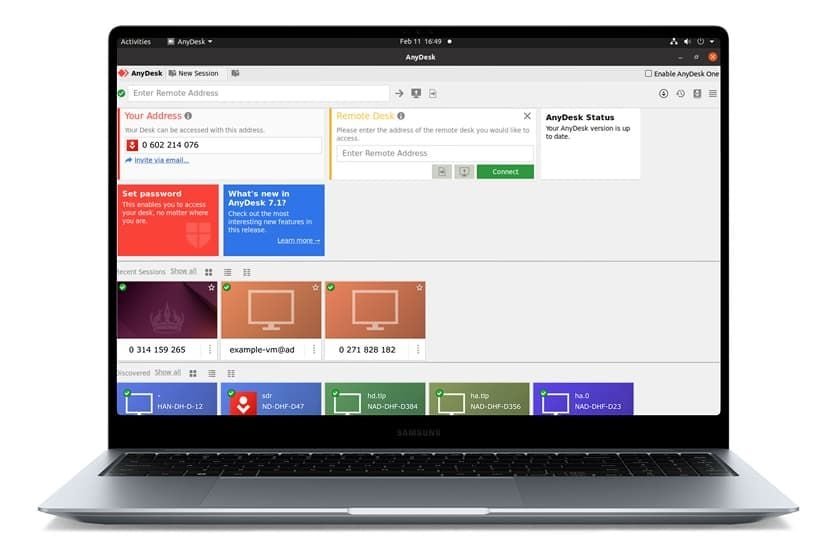
AnyDesk is a quick and secure remote desktop program enabling users to connect with and manage computer and mobile devices from basically anywhere. Whether you're providing technical support, working remotely, transferring files, or collaborating with colleagues, AnyDesk delivers a responsive experience with low latency and cross-platform compatibility. It can run on Windows, macOS, Linux, Android, iOS and other operating systems, so it's ideal for personal or business purposes. In addition to simple remote working, AnyDesk offers unattended access, file transfer, recording of the sessions, remote printing and permission management. Understanding their use effectively can help to make your process more efficient while using them remotely and safely.


Set Up AnyDesk on Your Devices
AnyDesk's installation is very easy. Install the application on both local and remote devices and run the application. Every device has a completely different AnyDesk ID(alias) that will be used to make a connection to it. All you have to do is type the ID of the remote device that you wish to connect to and make a connecting request. Few seconds after the user accepts the request or if it has been set up for a direct, unattended, or automatic logon, the guest can also view and control the host computer. It is a straightforward solution that allows for the use of AnyDesk even by novice users.
Control Remote Devices with Ease
AnyDesk allows the user to control a remote computer, much like they would be sitting in front of it. This feature allows you to remotely control the mouse and keyboard, launch applications, resolve issues or manage administrative tasks. The software centers around low-latency performance, meaning that even poor internet connections won't be detrimental if it comes to sharing screens. One of the session's features is the ability to tweak the picture quality and connection options between a user's screen and the network to achieve a better balance. This conveniences AnyDesk to be a great complementary tool for remote workers, IT support, or admins when traveling and accessing their office computers.
Transfer Files and Collaborate Efficiently
AnyDesk is more than remote control. It has an integrated technology called the File Manager, which enables users to safely transfer files between the connected devices without depending on a third-party cloud retailer. The support features include more collaboration tools like text chat, a whiteboard, session invitations and screen sharing, which make it easier to communicate when providing support or collaborating on team projects. Note that session recording is also possible which allows to preserve the remote sessions for documentation, train or future. The features enhance productivity and ease of working remotely.
Strengthen Security During Remote Sessions
Security can't be overlooked when it comes to remote desktop software, and AnyDesk has several tools to keep users safe. Permission management enables you to set what remote users can and can't do; unattended access may also be secured by using a tenacious password. Supported accounts can also set up the two-factor authentication feature, which limits access to incoming connections to approved devices through the device whitelists. If your system supports it, Privacy Mode is for those times when a sensitive job must not be seen by the far end, during your session. When granting permission to connect, it is advisable to review it first to improve security.
Customize Settings for Better Productivity
AnyDesk offers a few settings which users can customize to make the session their own. The display quality, audio transmit, keyboard key shortcuts, clip board sync and file transfer options can be set-up based upon your requirements. Businesses can take advantage of the Address Book for organizing contacts as well as the centralized administration tools for managing devices, and form customized clients for each team. Depending on the requirements of the remote support or remote work, users can fine-tune their workflow within these settings.
Tips for Getting the Best AnyDesk Experience
Stable Internet connection is required for optimal performance, and ensure you keep AnyDesk up to date to take advantage of security exploits and feature additions. Only allow uncontrolled access with trusted devices, protect accounts with strong passwords and when present with two-factor authentication and be cautious of accepting session requests. If you're constantly required to do technical support, add your devices to the Address Book and learn how to use file transfer, record sessions and permission profiles. Implementing these best practices will result in a faster, safer and more productive AnyDesk remote desktop experience.