


HP 
 4.1
4.1
Additional Info


FAQ
1. Do I have to log in to an HP account to use the app?
No. Users can complete local printing, local scanning and basic device binding without logging in to an HP account. However, an official HP account is mandatory for cloud printing, cross-device synchronization, remote printing, cloud file backup and HP+ related subscription services.
2. Why does HP Smart fail to connect to the printer or show offline status?
This is the most common usage problem, which is mainly caused by network exceptions or device recognition failures.
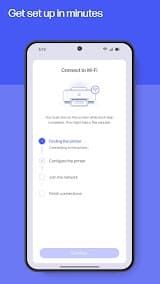
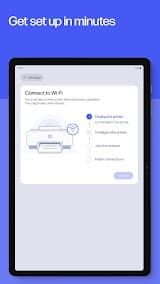
3. Can HP Smart work via USB connection?
HP Smart is mainly designed for wireless network connection. Most HP printers only support temporary USB connection for initial device setup. After the setup is completed, the system will automatically switch to Wi-Fi wireless connection.
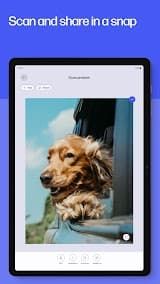
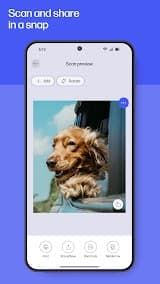
4. How to fix blurry scanned files or scanning failure?
First, check and clean the scanner glass of the printer to remove dust and stains that may cause streaks and blurriness. Second, enable the camera and storage permissions of HP Smart on your device to ensure normal scanning and file saving. Finally, update the app and printer firmware to the latest version to fix known scanning bugs.

 Install Latest APK

 Check historical versions
Ratings

Screenshots